From Tourist Snapshots to Trip-Defining Masterpieces: My Photo Editing Revelation
Let’s be honest, we’ve all been there. You’re standing on the edge of a breathtaking cliff in Santorini, the Aegean Sea sparkling like a million diamonds below, the whitewashed villages glowing in the setting sun. You snap a photo, convinced you’ve captured pure magic. Then you look at it later, and… meh. The sky is washed out, the colors are muted, and that pesky tourist in the background is ruining your perfect shot.
For years, that was my travel photography story. I’d return from incredible adventures – trekking through the lush rice terraces of Bali, marveling at the ancient ruins of Machu Picchu, or getting lost in the bustling markets of Marrakech – with a camera roll full of memories that just didn't translate into compelling visuals. My photos were fine, but they lacked that 'wow' factor, that vibrant punch that truly conveyed the emotion and beauty of the moment. I was a travel blogger for Tripsora, sharing stories, but my visuals felt… flat. It was honestly disheartening, and I questioned if I had what it took to be a visual storyteller.
Then, a few years ago, something clicked. Or rather, I downloaded a few apps. What started as a desperate attempt to salvage a particularly dull batch of photos from my epic road trip through the Canadian Rockies turned into a full-blown obsession. These weren't just filters; these were powerful, intuitive tools that put a professional darkroom right in my pocket. The transformation wasn't just in my photos; it was in my confidence, my storytelling, and ultimately, my entire approach to travel. These photo editing apps truly changed my life forever, allowing me to share the world as I saw it, vibrant and unforgettable.
Today, I rarely post a photo straight out of the camera. And neither should you! Let me walk you through the game-changers, the apps that took my travel pics from forgettable to phenomenal, and how you can use them to elevate your own visual stories.
1. Adobe Lightroom Mobile: My Pocket-Sized Professional Studio
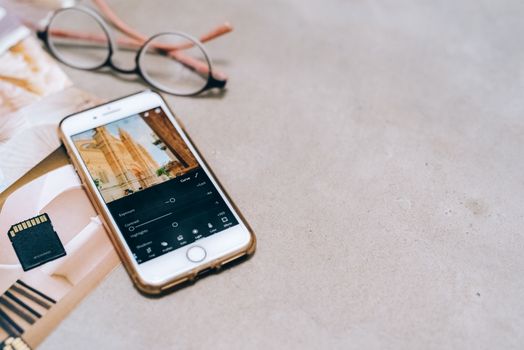
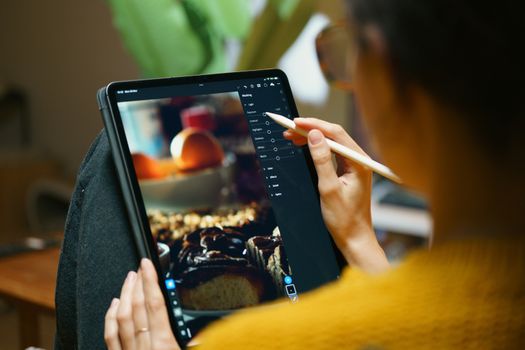
If there's one app that truly revolutionized my travel photography, it's Adobe Lightroom Mobile. This isn't just an app; it's a mobile powerhouse that brings professional-grade editing tools right to your smartphone. For years, I thought Lightroom was only for desktop pros, but the mobile version is incredibly robust and surprisingly easy to learn.
Why it changed my life: I remember my trip to the Amalfi Coast. The vibrant blues of the sea, the pastel houses clinging to cliffsides, the lemon groves – it was a feast for the eyes. But my camera struggled with the harsh midday sun, leaving many shots looking overexposed or dull. Enter Lightroom.
With Lightroom Mobile, I learned to adjust exposure precisely, pull back highlights to reveal details in the sky, and boost shadows to bring out the textures in the ancient architecture. The HSL (Hue, Saturation, Luminance) sliders became my best friend. I could target specific colors – making the blues of the Mediterranean pop without oversaturating the entire image, or enhancing the golden glow of the sunset on Positano. This selective control was a revelation!
Practical Tips & Actionable Advice:
- Start with Presets: Lightroom comes with excellent built-in presets, and there are countless free and paid ones available online (I often use presets from travel photographers I admire, which usually cost around $10-30 for a pack). They offer a fantastic starting point to achieve a consistent look across your photos. I even created my own "Tripsora Signature" preset that I apply to most of my travel photos for a cohesive Instagram feed.
- Master the Basics: Focus on Exposure, Contrast, Highlights, Shadows, Whites, Blacks, and Vibrance. These are your foundational adjustments.
- HSL is Gold: Seriously, spend time experimenting with the HSL sliders. Want greener leaves in a jungle shot? Boost the luminance of green. Want a more dramatic sky? Desaturate the blues slightly and boost their luminance.
- Selective Edits: The brush tool and radial/linear gradients allow you to apply adjustments to specific parts of your image. This is crucial for balancing tricky lighting situations, like brightening a shadowed face against a bright background.
- Cost: The basic features are free, but to unlock premium features like selective adjustments, healing brush, and cloud sync, you'll need an Adobe Creative Cloud Photography plan, which typically costs around $9.99/month. Worth every penny for a serious travel photographer or blogger!
2. Snapseed: The Free, Intuitive Powerhouse for Quick Fixes
If Lightroom is my studio, Snapseed is my trusty Swiss Army knife. Developed by Google, this app is completely free and incredibly powerful. It’s perfect for those moments when you need to make quick, impactful edits on the go, or when you don't want to dive deep into Lightroom's more complex features.
Why it changed my life: I distinctly remember standing at the Treasury in Petra, Jordan. The sun was high, and my wide-angle shot of the magnificent facade was slightly crooked. Plus, a random plastic bottle had found its way into the foreground. My heart sank. I didn't have time for a full Lightroom session, and I wanted to share the moment instantly.
Snapseed came to the rescue. Its Perspective tool allowed me to easily straighten the horizon and correct the slight tilt, making the ancient structure feel grander and more balanced. Then, the Healing tool – oh, the Healing tool! – magically erased that unsightly plastic bottle with a few taps. Within minutes, my Petra shot was transformed from a minor disappointment into a share-worthy masterpiece. It’s saved countless photos from being deleted due to minor imperfections.
Practical Tips & Actionable Advice:
- Healing Brush Hero: This is one of Snapseed's standout features. Use it to remove unwanted objects, blemishes, or distractions from your photos. Just zoom in and paint over the offending item – it’s surprisingly effective.
- Perspective Correction: Essential for architectural shots or landscapes where you want straight lines. It can correct tilt, rotate, and even free transform your image.
- Selective Adjustment: Similar to Lightroom, Snapseed has a "Selective" tool that lets you place points on your image and adjust brightness, contrast, and saturation only in that specific area. Perfect for brightening a face or darkening a distracting background.
- Tune Image: This comprehensive tool offers basic adjustments like brightness, contrast, saturation, ambiance, highlights, and shadows. "Ambiance" is a unique slider that intelligently adjusts contrast and saturation for a more dynamic look.
- Brush Tool: Use it to dodge and burn, adjust exposure, temperature, or saturation locally. I often use it to subtly brighten eyes or darken harsh shadows.
- Cost: Completely FREE! No hidden subscriptions, no in-app purchases. A must-have for every traveler.
3. VSCO: Crafting Consistent Moods and Aesthetic Storytelling
While Lightroom gives me ultimate control and Snapseed handles quick fixes, VSCO is where I go to define the mood and aesthetic of my travel stories. VSCO is renowned for its beautiful, film-inspired presets (they call them "filters" but they're far more sophisticated) and its strong community aspect.
Why it changed my life: My first trip to Southeast Asia, particularly Bali, was a riot of color, spirituality, and incredible natural beauty. But I struggled to make my photos feel cohesive. One photo would be vibrant, the next muted, the next overly warm. My Instagram feed looked like a chaotic collage rather than a flowing narrative.
VSCO helped me find my "signature style." I experimented with various presets like A6 (a cool, desaturated look), C1 (vibrant and warm), and my personal favorite for golden hour shots, M5 (a soft, warm, slightly desaturated film look). By consistently applying a similar preset and then fine-tuning it with VSCO’s intuitive editing tools (exposure, contrast, saturation, grain, fade), I started to create a recognizable aesthetic. My followers started commenting on the consistent "vibe" of my feed, which was a huge boost to my confidence and brand as a travel blogger.
Practical Tips & Actionable Advice:
- Find Your Preset: Explore VSCO’s extensive library of presets. Many are free, but the VSCO X membership (around $29.99/year) unlocks hundreds more. Don't just pick one; try a few that resonate with your travel style (e.g., bright & airy, moody & cinematic, vintage film).
- Adjust Filter Strength: After applying a preset, don't be afraid to reduce its intensity. Often, 60-80% strength is perfect to add character without overdoing it.
- Fine-Tune with Basic Tools: Once a preset is applied, use the standard editing tools (exposure, contrast, saturation, sharpen, clarity) to perfect the image.
- Grain & Fade: These are VSCO's secret weapons for adding a beautiful, film-like quality. Use grain sparingly for texture, and fade for a softer, vintage feel.
- Recipe Feature: Once you've perfected an edit, save it as a "Recipe." This allows you to apply the exact same sequence of edits to future photos, ensuring consistency across your feed. This is invaluable for maintaining a cohesive brand identity on social media.
- Cost: Free for basic filters and editing tools. VSCO X subscription for premium filters and advanced features.
4. TouchRetouch: Erasing Distractions & Perfecting the Scene
This app is a true unsung hero that has saved countless "almost perfect" travel photos for me. TouchRetouch is a specialized app designed for one thing: removing unwanted objects from your images quickly and flawlessly.
Why it changed my life: Imagine this: you've finally got the perfect angle of the Eiffel Tower, the golden light of sunset bathing it in a magical glow. You snap the picture, review it, and there it is – a rogue tourist's arm sticking into the frame, or a garbage bin strategically placed by the city. It’s infuriating!
TouchRetouch is my secret weapon against photobombers and visual clutter. On a recent trip to Tokyo, I had a stunning shot of the Shibuya crossing at night, but a distracting street sign was right in the middle of the neon glow. With TouchRetouch, I simply traced over the sign, and poof, it was gone, seamlessly replaced by the surrounding textures. The result? A clean, impactful image that truly captures the energy of Shibuya. It's like magic, and it gives me the power to clean up my photos without needing a desktop editor.
Practical Tips & Actionable Advice:
- Object Removal Tool: This is the star feature. Use your finger to trace around the object you want to remove. The app intelligently analyzes the surrounding pixels and fills in the gap.
- Line Removal: Great for power lines, fences, or other linear distractions. Just draw a line over them, and they vanish.
- Quick Repair: For small blemishes or dust spots, this tool is incredibly fast and effective.
- Zoom In: For best results, zoom in as much as possible when using the tools to ensure precise selection and removal.
- Patience is Key: Sometimes, you might need to try removing an object in smaller sections for a cleaner result.
- Cost: A one-time purchase, usually around $1.99 - $2.99. An absolute steal for the frustration it saves!
5. Facetune: Beyond Selfies – Subtle Enhancements for Any Shot
Wait, Facetune? Isn't that for selfies? Absolutely! But hear me out: Facetune (specifically Facetune2) has features that are incredibly useful for any travel photo, not just portraits. I use it for subtle, natural enhancements that elevate the overall image.
Why it changed my life: I rarely post selfies, but I often feature myself (or friends) in my travel photos to add a human element and context. Sometimes, the lighting isn't perfect, or a small detail just needs a tweak. On a recent trek through Patagonia, I captured an incredible shot of myself against the backdrop of Torres del Paine. The landscape was epic, but my face was slightly in shadow, and my hiking jacket had a small mud smudge.
Facetune allowed me to subtly brighten my face without making it look unnatural, using the "Whiten" tool (which works wonders for brightening anything, not just teeth!). The "Patch" tool helped me seamlessly remove that mud smudge from my jacket. I even used the "Details" tool to slightly enhance the texture of the rock formations in the background, making them pop just a little more. It’s all about subtle refinement, not creating an artificial reality.
Practical Tips & Actionable Advice:
- Whiten Tool: Don't just think teeth! Use it sparingly to brighten dull whites in architecture, lighten shadows on faces, or make clouds pop.
- Patch Tool: Similar to Snapseed's healing brush but sometimes even more precise for specific areas. Use it to remove small imperfections, dust, or even tiny distracting elements.
- Details Tool: Enhance clarity and sharpness in specific areas. Great for bringing out the texture in a mountain range, the intricate details of a temple, or the pattern on a local fabric.
- Reshape Tool: Use with extreme caution and subtlety! It can be used to slightly straighten a crooked fence line or gently adjust the perspective of a building if other tools aren't quite cutting it. Less is always more here.
- Cost: Free to download with basic features, but a subscription (around $7.99/month or $35.99/year) unlocks all the advanced tools.
My Workflow & The Mindset Shift: From Snapshot to Storyteller
Discovering these apps wasn't just about learning new tools; it was about a fundamental shift in my approach to photography. I went from passively documenting my travels to actively crafting visual stories.
My typical 5-minute editing workflow (after a good shot):
- Import to Lightroom Mobile: My primary hub. I apply my "Tripsora Signature" preset, then fine-tune exposure, contrast, highlights, and shadows. I adjust HSL for specific color pops.
- Quick Fixes in Snapseed/TouchRetouch: If there's a crooked horizon, a glaring photobomber, or a piece of litter, I'll hop into Snapseed or TouchRetouch to clean it up.
- Mood Setting in VSCO: If I want a specific filmic look or need to ensure consistency across a series of photos, I'll use VSCO to apply a chosen preset and make minor adjustments.
- Final Polish in Facetune (if needed): A quick pass to brighten a face, remove a tiny blemish, or sharpen a specific detail.
- Export and Share! I always export at the highest quality for Instagram and other platforms.
Beyond the Apps: The Importance of Authenticity
While these apps are incredibly powerful, remember that they are enhancement tools, not magic wands. The best edits start with a good base photo. Focus on composition, lighting, and capturing genuine moments. Don’t over-edit to the point where your photos look artificial or don’t reflect the reality of your experience. The goal is to make your photos look like the best version of what you saw, not a completely different scene.
These apps allowed me to bridge the gap between what my eyes saw and what my camera captured. They empowered me to tell richer, more vibrant stories, transforming my travel blog and my passion for photography. They truly changed my life, allowing me to connect with my audience on a deeper, more visual level.
Now it's your turn!
Ready to Transform Your Travel Pics?
Don't let another incredible travel moment be lost to a dull, uninspired photo. Download one (or all!) of these apps, start experimenting, and watch your travel memories come to life. You'll be amazed at the difference a few minutes of thoughtful editing can make.
Which app are you most excited to try first? Share your favorite editing tips or apps in the comments below! And don't forget to tag @Tripsora and use #TripsoraTransforms when you share your newly edited masterpieces. I can't wait to see your incredible transformations!
---